
The quickest way to build your own Last Epoch loot filter is the RaidDex loot filter builder: load a template or create the filter straight from your build, adjust the rules and download it as an .xml file. Copy the file into %USERPROFILE%\AppData\LocalLow\Eleventh Hour Games\Last Epoch\Filters and select the filter in the game’s loot filter window. Current as of Patch 1.5 (Season 5: Rage of the Frostborn).
Quick guide: a filter in five steps
- Open the builder: the loot filter builder runs in your browser, no account needed.
- Pick a starting point: “Load a template” (Campaign or Endgame (strict)), “Create loot filter” in the build planner, or “Open file” with an existing filter file.
- Adjust the rules: add conditions, set colour, light beam and emphasis, change the order with the arrows.
- Test it: under “Test an item – which rule applies?” you put together an item and see which rule shows or hides it.
- Get it into the game: click “Download (.xml)”, copy the file into the Filters folder and select it in the game.
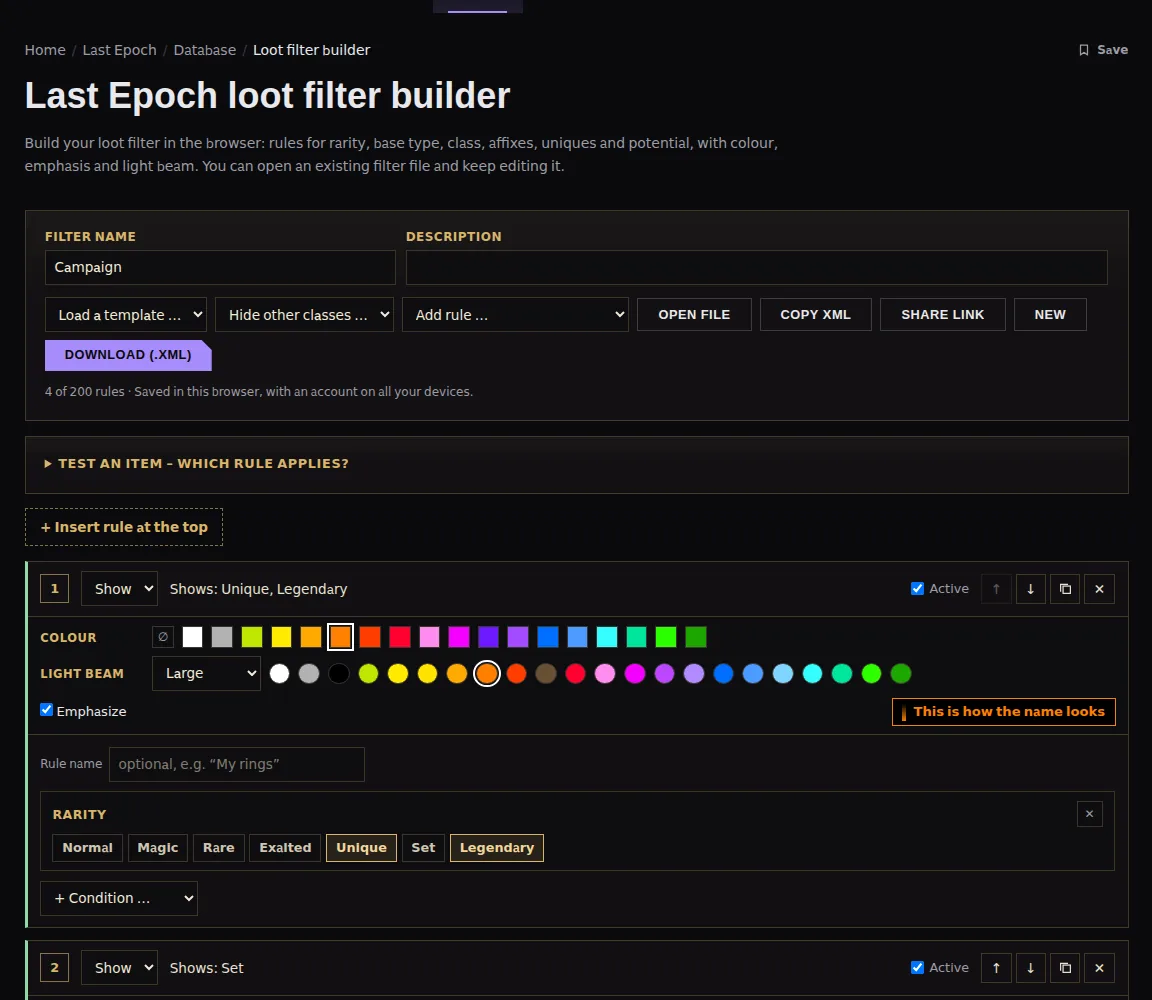
How loot filter rules work
- The game checks the rules from top to bottom – the first matching rule decides.
- Items that no rule matches are shown. That is why hide rules usually go at the bottom.
- All conditions of a rule must match. Without a condition, a rule matches every item.
- A filter has at most 200 rules. If there are more, the game only reads the first 200.
Every rule has the action Show or Hide. For “Show” you decide how the name looks: one of 18 colours (or “Keep colour”), a light beam from “Smallest” to “Largest” in one of 22 colours, and “Emphasize” if you like – the preview shows the result right away.
Every condition in the builder
“+ Condition” adds any of these conditions to a rule – combine as many as you need:
| Condition | What you set |
|---|---|
| Rarity | Normal, Magic, Rare, Exalted, Unique, Set, Legendary |
| Base type | Armour, one-handed weapons, two-handed weapons & bows, off-hand, jewellery & relics, idols, other; with exactly one base type, optionally single subtypes |
| Class | Matches items that require this class |
| Affixes | Pick affixes by search, plus “At least this many of them”, “Tier per affix” and “Sum of tiers” (=, <, ≤, >, ≥) |
| Uniques | Single uniques and set items by search |
| Potential | Legendary Potential, Weaver’s Will, Weaver’s Touch, Forging Potential – each with min. and max. |
| Number of affixes | Prefixes and suffixes 0–3 each, plus “Sealed” (any, not sealed, sealed, sealed prefix or suffix) |
| Character level | From–to; the rule only applies while your character is within this range |
| Required level | Below or above a fixed level, or relative to your character level |
| Corruption | Any, only corrupted or only uncorrupted items |
The builder knows all 486 uniques and set items, 623 equipment affixes and 469 idol affixes. For context on tiers: tiers 1–5 can be reached in the forge, tiers 6 and 7 only exist on dropped, exalted items, and tier 8 is primordial. The values of every tier are in the affix list, the bases with their implicits under base items.
Templates and ready-made rules
“Load a template” gives you a complete filter to start from; an existing one is only replaced after you confirm.
| Template | Highlighted | Hidden |
|---|---|---|
| Campaign | Unique and legendary items (large light beam), sets and exalted items (medium light beam) | Normal items |
| Endgame (strict) | Unique and legendary items (largest light beam), sets and exalted items (large light beam), plus recoloured only: idols with at least one prefix and one suffix | Normal, magic and rare items |
Single rules are added via “Add rule”. The builder inserts them at the very top so they apply before your hide rules:
- Resistances tier 5+ and Two resistances on one item
- Health tier 5+ and Movement speed
- Uniques not yet collected: every unique you have not ticked as found in the unique list – emphasized and with a light beam
“Hide other classes” lets you pick your class and adds a hide rule for items that require one of the other four classes.
Create a loot filter from the build planner
At the top of the build planner you will find the “Create loot filter” button. It opens the builder with a filter for exactly this build, named after the build (or its mastery), with these rules:
- The build’s uniques – emphasized, largest light beam
- Exalted items with at least one build affix
- Rare items with two build affixes
- Idols with the build’s idol affixes
- All other unique, set and legendary items
- Hide: items that require another class
- Hide: normal, magic and rare items
Send uniques and affixes from the database
- Unique page: “Add to loot filter” puts the unique into the unique rule at the top (emphasized, with a light beam).
- Unique list: filter by slot, base type, class, drop source or level, then use “Shown ones to loot filter” – up to 150 at once.
- Affix page: “Add to loot filter” adds a rule at the top for rare and exalted items with this affix.
- Affix list: “Shown ones to loot filter” turns up to 60 affixes shown into one rule for rare and exalted items with at least one of them.
- Idols: the same for idol affixes – the rule then applies to idols.
Sensible base rules and their order
Because the first matching rule wins: specific rules at the top, broad rules further down – just like the filter from the build planner.
- Top: items you don’t want to miss, such as your target uniques or “Uniques not yet collected”.
- Below: affix rules for your build, e.g. “Resistances tier 5+”.
- Then: broad show rules such as all unique, set and legendary items.
- Bottom: hide rules – other classes first, rarity last.
During the campaign the Character level condition helps: a hide rule for magic items then only applies from a certain level range onwards.
Open, save and share files
- Open file: loads an existing loot filter file so you can keep editing it. Conditions the builder cannot edit are kept unchanged; with files from an old filter version, colours may differ.
- Saving: your filter is saved automatically in this browser, and with an account on all your devices.
- Share link: copies a link with the whole filter. Whoever opens it can take over the filter after confirming.
Load the filter in the game
- Click “Download (.xml)” in the builder.
- Copy the file into Last Epoch’s filter folder: %USERPROFILE%\AppData\LocalLow\Eleventh Hour Games\Last Epoch\Filters
- Open the loot filter window in the game and select the filter.
Changes in the builder only reach the game once you download the file again and copy it into the folder.
Frequently asked questions
Where does the Last Epoch loot filter file go?
Into the folder %USERPROFILE%\AppData\LocalLow\Eleventh Hour Games\Last Epoch\Filters. Then select the filter in the game’s loot filter window.
How do I import an existing loot filter into the builder?
Use “Open file”. Conditions the builder does not know are kept unchanged. If the file is not a Last Epoch loot filter file, the builder tells you.
How many rules can a Last Epoch loot filter have?
At most 200. If a filter has more, the game only reads the first 200; the builder shows how many you are using.
Why do I still see items I wanted to hide?
Either a show rule further up applies first, or no rule matches – then the item is shown. “Test an item” tells you which rule applies.
Can I turn my build into a loot filter automatically?
Yes. “Create loot filter” in the build planner opens the builder with a filter based on your build’s uniques and affixes. Adjust it there and download it.